If your IRONSCALES integration with Google Workspace has been disconnected or needs to be re-authorized, follow these steps to reconnect it.
Step 1: Open Email Server/Services Settings
- Log in to the IRONSCALES dashboard.
- Click the Settings cog (Company and Group Settings) in the top navigation bar.
- In the left sidebar under Integrations, click Email Server/Services.
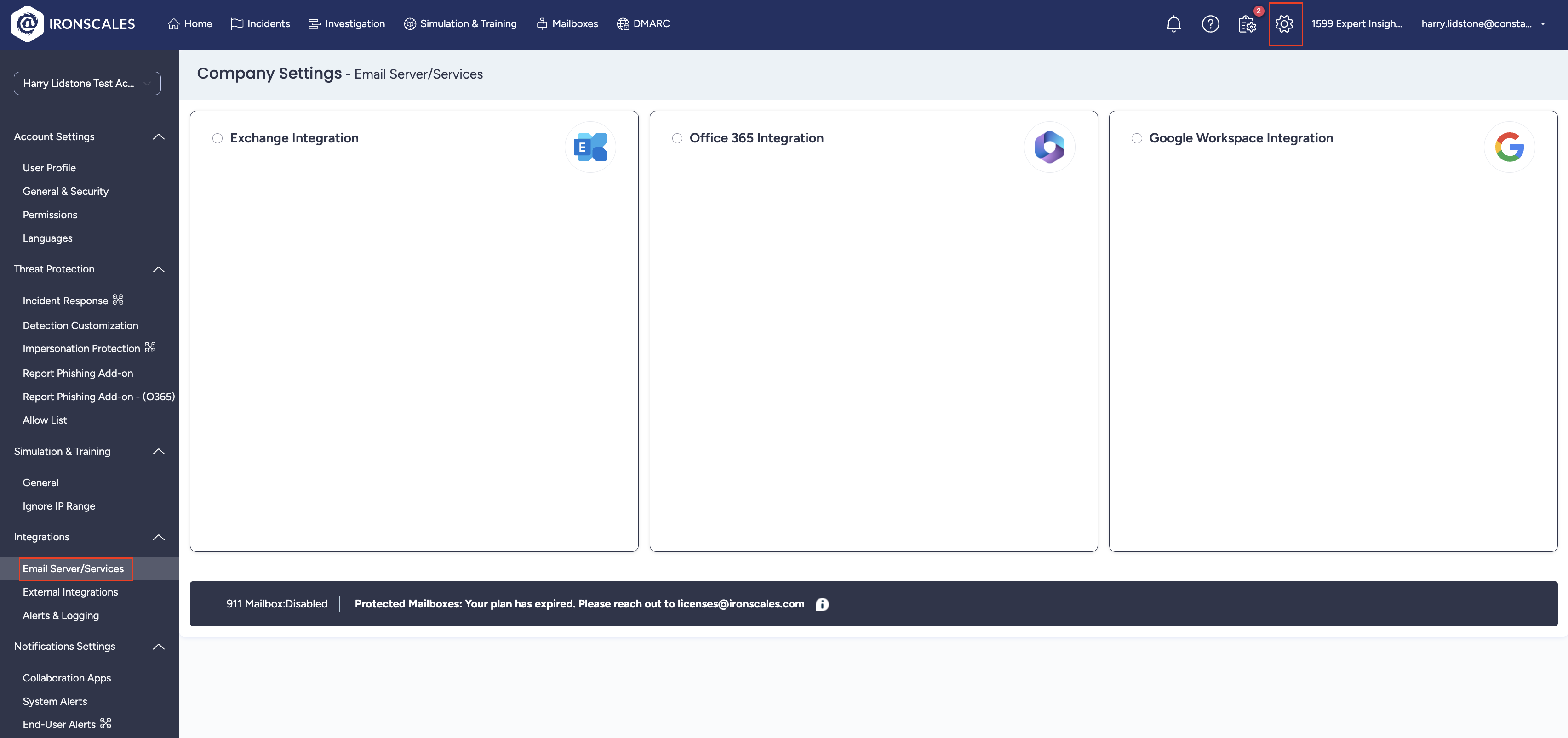
Step 2: Select Google Workspace Integration
Click the Google Workspace Integration card. You’ll see a three-step setup process: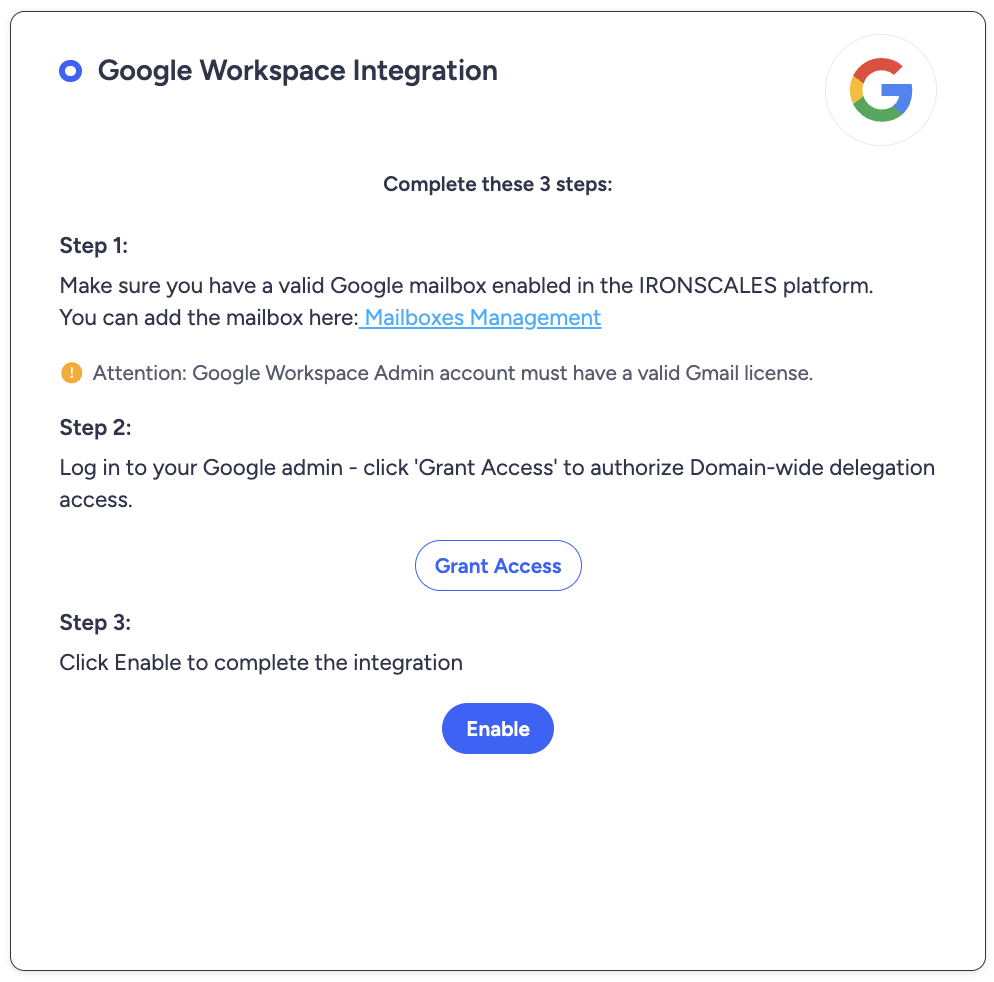
Step 2a: Verify Your Google Mailbox
Make sure you have a valid Google mailbox enabled in the IRONSCALES platform. You can add or check mailboxes via the Mailboxes Management page.
Important: The Google Workspace Admin account used must have a valid Gmail license.
Step 2b: Grant Domain-Wide Delegation Access
Click Grant Access. You’ll be redirected to Google’s admin console to authorize domain-wide delegation access for IRONSCALES.
Step 2c: Enable the Integration
Click Enable to complete the integration.
Step 3: Verify the Integration
Check the bottom of the settings page to confirm the correct number of Protected Mailboxes is shown.
Need help with IRONSCALES?
We deploy, manage, and support IRONSCALES anti-phishing protection for businesses worldwide. If you need expert help securing your inbox, we’d be happy to help.
Speak to an expertWas this article helpful?
That’s Great!
Thank you for your feedback
Sorry! We couldn't be helpful
Thank you for your feedback
Feedback sent
We appreciate your effort and will try to fix the article