If your IRONSCALES integration with Microsoft 365 has been disconnected or needs to be re-authorized, follow these steps to reconnect it.
Step 1: Open Email Server/Services Settings
- Log in to the IRONSCALES dashboard.
- Click the Settings cog (Company and Group Settings) in the top navigation bar.
- In the left sidebar under Integrations, click Email Server/Services.
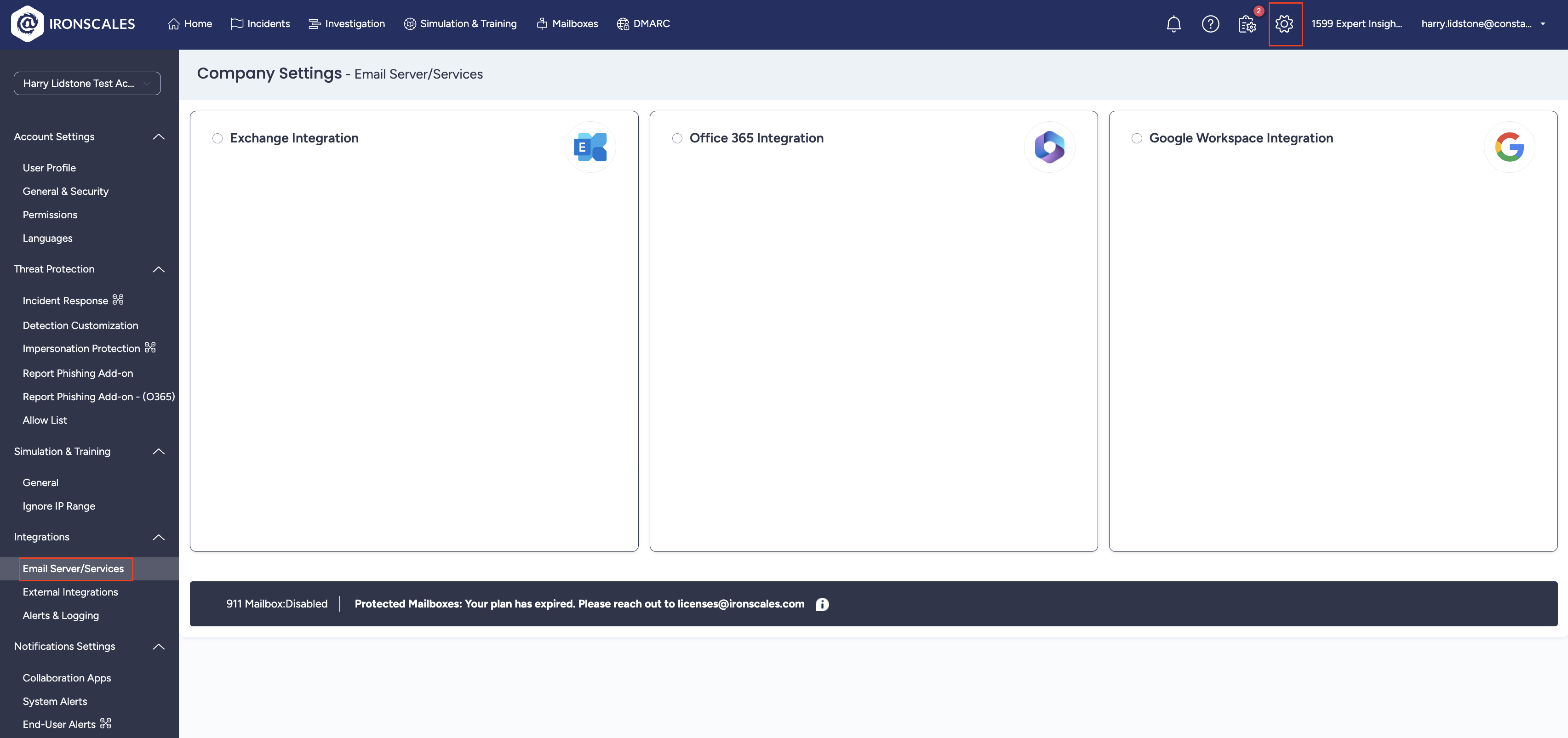
Step 2: Select Office 365 Integration
- Click the Office 365 Integration card.
- Click Authorize office 365 access.
- You will be redirected to Microsoft’s sign-in page. Log in with a Global Administrator account and grant the required permissions.
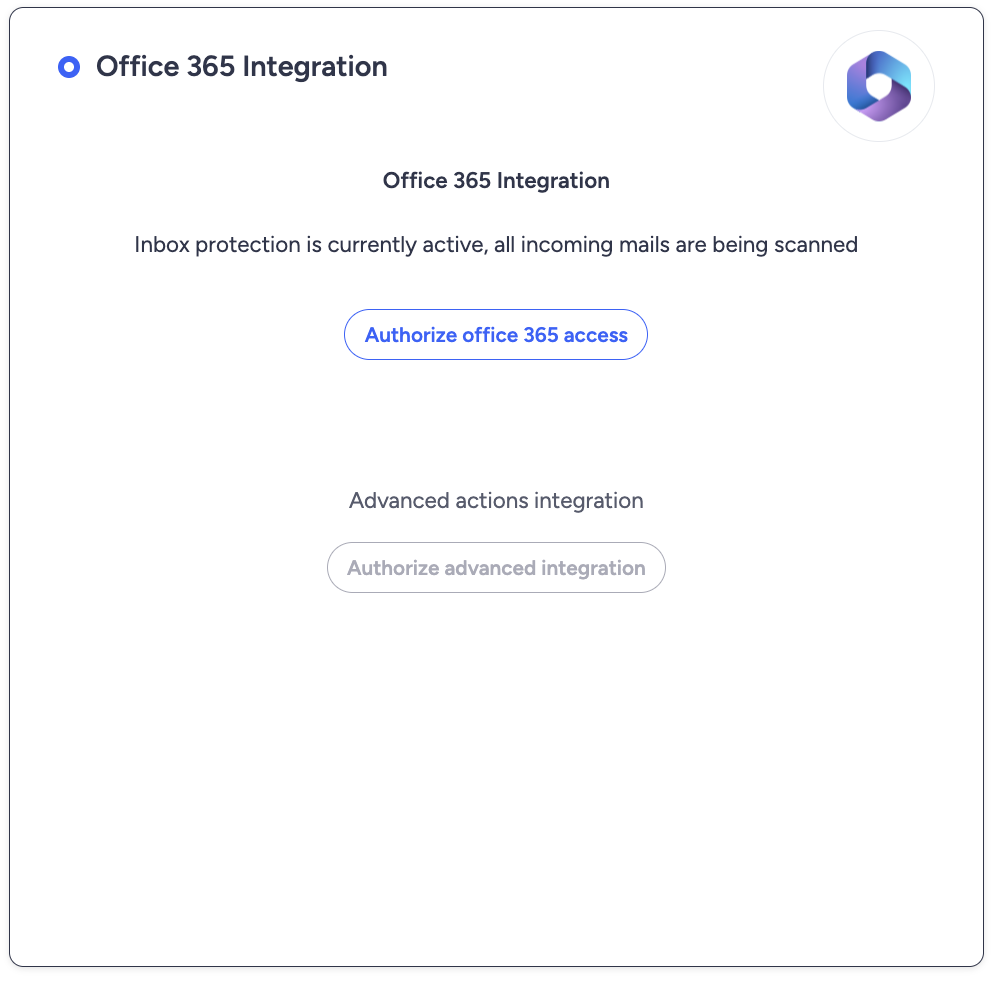
Step 3: Authorize Advanced Integration (Optional)
If your organization uses advanced IRONSCALES features, you may also need to click Authorize advanced integration and complete the same authentication process.
Step 4: Verify the Integration
Once authorized, the page should display: Inbox protection is currently active, all incoming mails are being scanned.
Check the bottom of the settings page to confirm the correct number of Protected Mailboxes is shown.
Need help with IRONSCALES?
We deploy, manage, and support IRONSCALES anti-phishing protection for businesses worldwide. If you need expert help securing your inbox, we’d be happy to help.
Speak to an expertWas this article helpful?
That’s Great!
Thank you for your feedback
Sorry! We couldn't be helpful
Thank you for your feedback
Feedback sent
We appreciate your effort and will try to fix the article