Check Point Harmony Email & Collaboration is an API-based security layer for Microsoft 365. Getting it connected is quick: you authorise it against your Microsoft 365 tenant, with no MX record change and no rerouting of your mail. This guide covers how to connect it, and just as importantly, what "connected" does and does not mean.
Before you start
- A Microsoft 365 global administrator account to authorise the connection.
- Admin access to the Check Point Infinity Portal (Harmony Email & Collaboration).
How the integration works
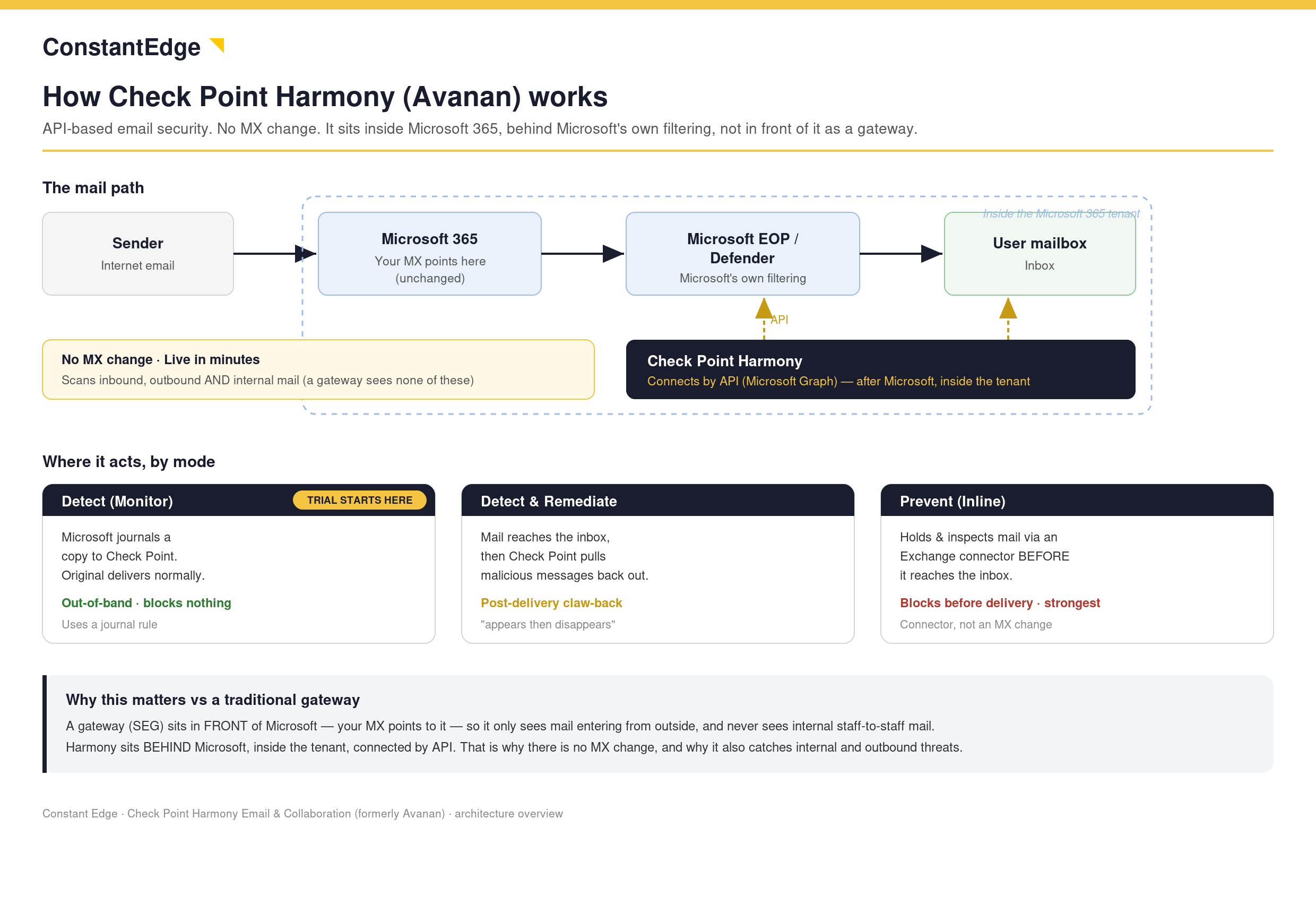
Check Point connects to Microsoft 365 through Microsoft's API rather than by sitting in the mail flow. Because it is API-based:
- No MX record change is required.
- Mail is not rerouted through Check Point. It continues to be delivered by Microsoft.
- Check Point reads mail and mailbox activity through the API and can act on messages after Microsoft has processed them.
This is what makes it fast to deploy and invisible to users on day one.
Connect Check Point to your Microsoft 365 tenant
- Sign in to the Check Point Infinity Portal and open Harmony Email & Collaboration.
- Go to Security Settings → SaaS Applications and select Office 365 Mail.
- Click Start and choose Microsoft 365.
- Sign in with a Microsoft 365 global administrator account when prompted.
- Review and accept the Microsoft permission request so Check Point can access the tenant through the API.
- Wait for the initial sync. Check Point begins learning your environment: users, groups, and recent mail.
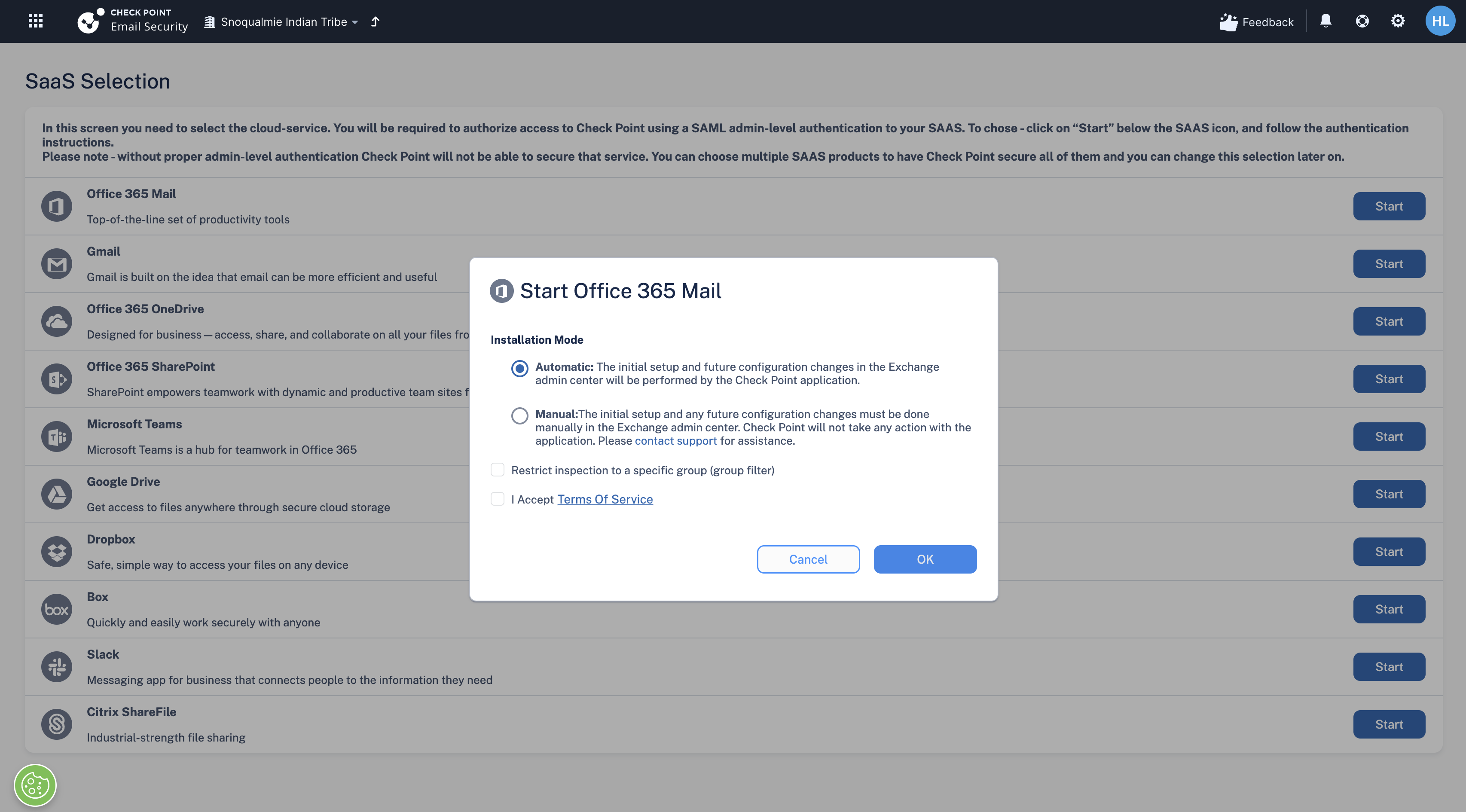
The account you authorise with needs Microsoft 365 global admin rights. This is a one-time authorisation. You are granting Check Point API access, not changing how your mail is delivered.
What "connected" actually means
Connecting Check Point gives it visibility of mail across your whole tenant. But visibility is not the same as protection. At this point Check Point can see mail and let you act on it manually, but it is not yet automatically catching, moving, or blocking anything.
Automatic detection and enforcement only begin once you have both:
- Turned on the security engines, which define what to look for, and
- Created a policy that activates those engines and includes your users in its scope.
Until a policy exists and includes a given user, mail to that user is not being automatically scanned or actioned, even though the tenant shows as "connected".
This is the single most important thing to understand about Check Point: a connected tenant is not automatically a protected tenant. The next article explains the model everything else builds on.
Next steps
Next: How Check Point works: engines vs policies
Need Help with Check Point Harmony?
We deploy, configure, and manage Check Point Harmony Email & Collaboration for businesses, making sure your policies, engines, and protection modes are set up correctly so your organisation is fully covered.
Speak to an expertWas this article helpful?
That’s Great!
Thank you for your feedback
Sorry! We couldn't be helpful
Thank you for your feedback
Feedback sent
We appreciate your effort and will try to fix the article