To protect anything with Check Point, you need to understand its two-layer model. Almost every feature works the same way: an engine defines the behaviour, and a policy switches it on and decides who it applies to. Once this model clicks, the rest of Check Point makes sense.
The two layers
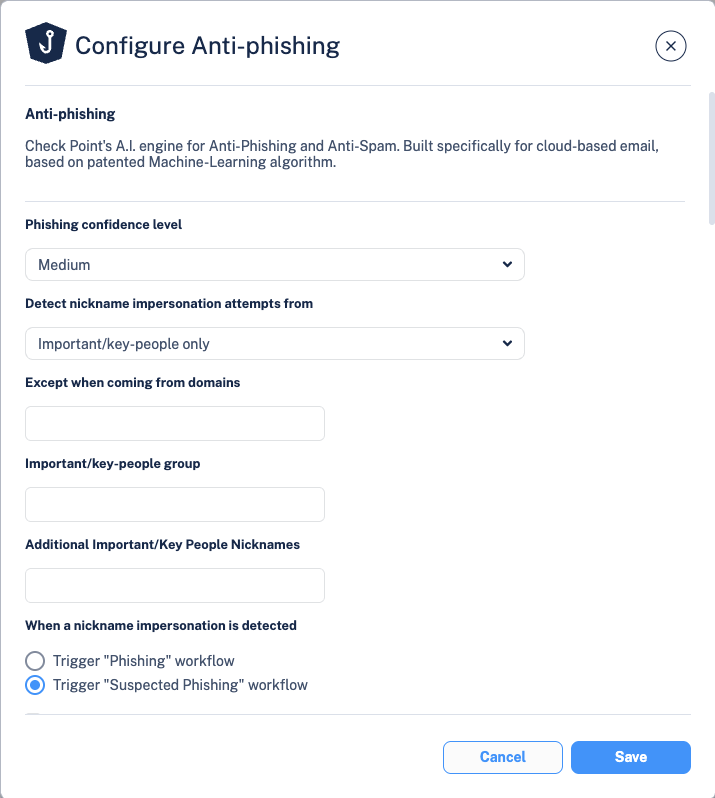
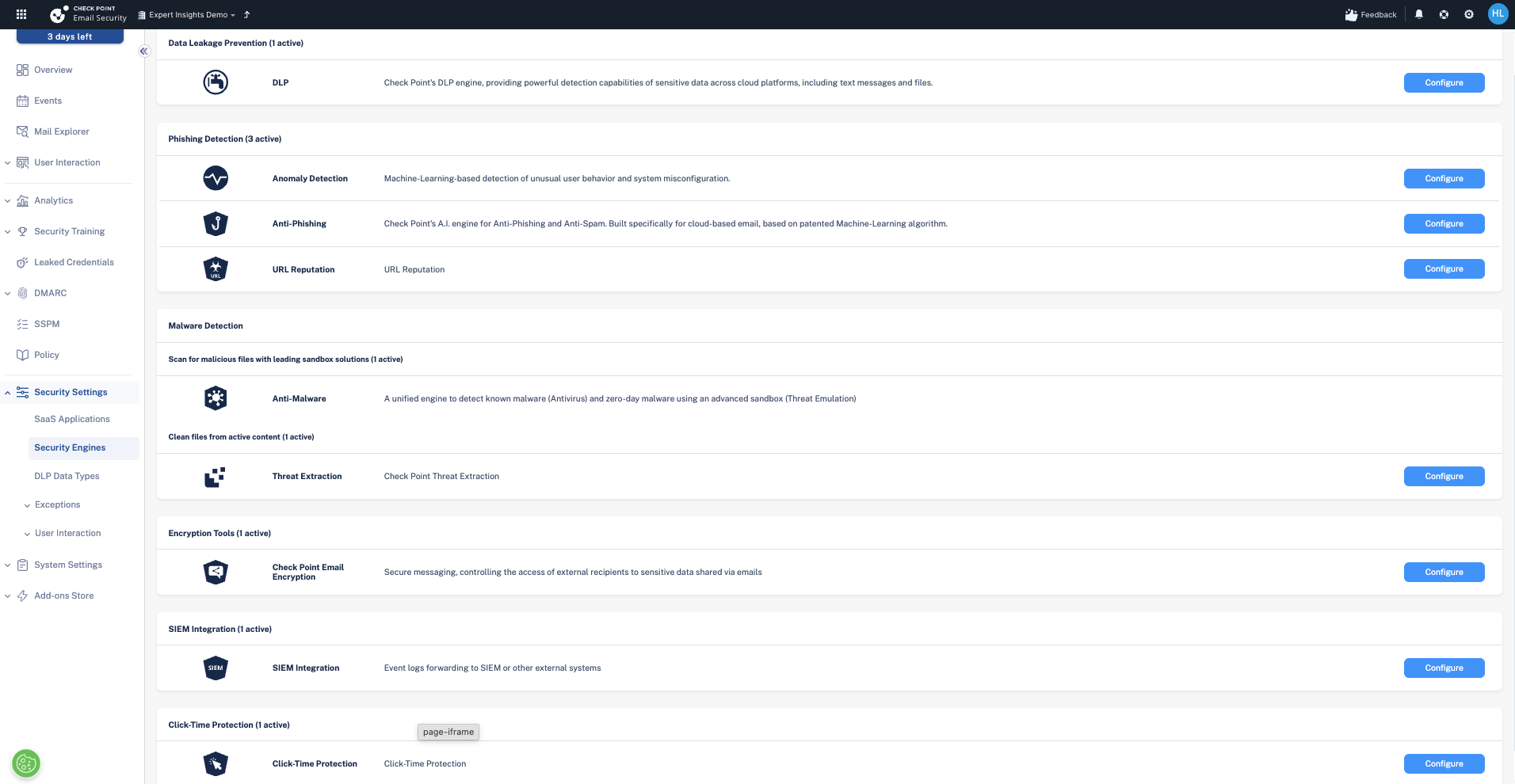
1. The engine (found under Security Settings → Security Engines) defines what a capability does and how it behaves. Anti-Phishing, Click-Time Protection, DLP, and Anomaly Detection are all engines. Configuring an engine sets its behaviour, but on its own it does not act on anyone's mail.
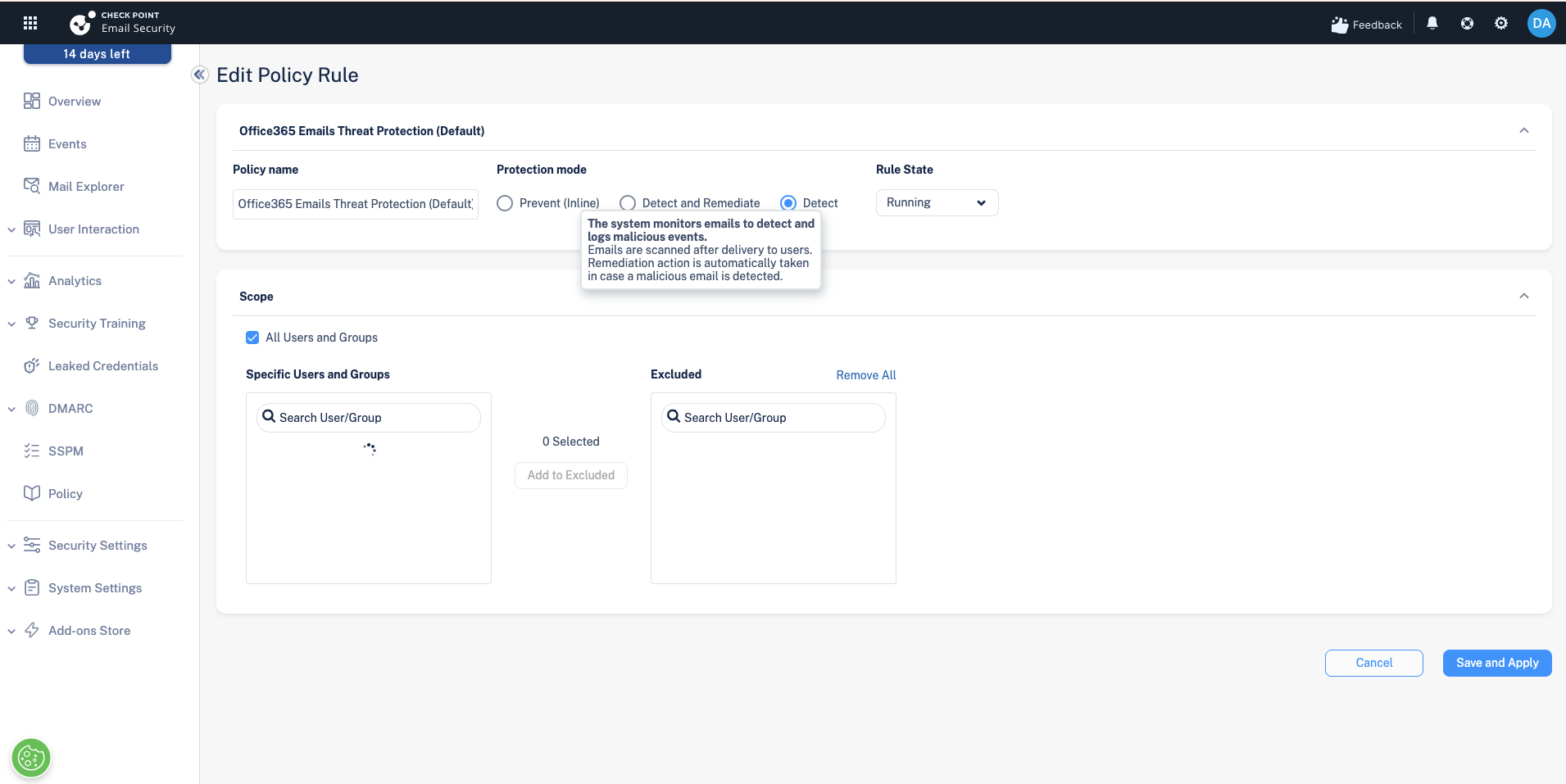
2. The policy (found under Policy) activates one or more engines, sets the protection mode (Detect, Detect & Remediate, or Prevent), and defines the scope: which users and groups it applies to.
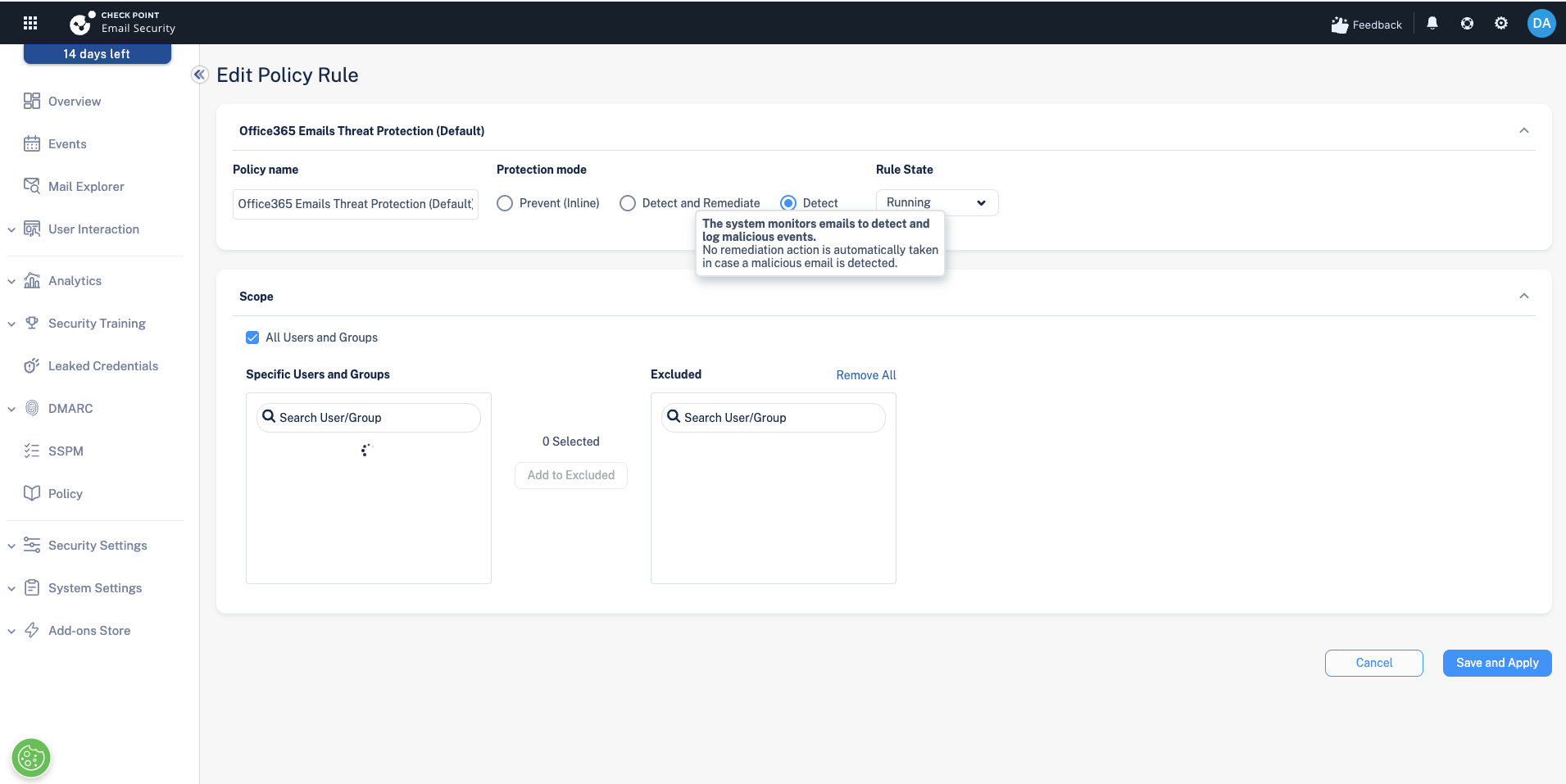
The key principle: nothing happens until a policy exists and includes the user in its scope. An engine with no policy is just a setting. A policy with users in scope is what actually protects them.
Why this matters: the scope trap
Because automatic detection follows policy scope, a user who is not in any policy's scope is not being automatically scanned, even though the tenant is connected and the engines are configured. This is exactly how a phishing email can slip through: the recipient sat outside the scope of the threat policy, so their mail was never automatically inspected.
The workflow in practice
- Configure the engine under Security Settings → Security Engines. Set how the capability behaves.
- Create or adjust a policy under Policy. Turn the engine on, choose the mode, and set the scope.
- Confirm the scope. Make sure the users and groups you intend to protect are actually included.
A tenant-wide API connection lets you see and manually act on any mailbox. But automatic scanning, detection, and enforcement only apply where a policy is in scope. Visibility is tenant-wide; automatic protection is policy-scoped.
Next steps
Next: Deployment modes: Detect, Detect & Remediate, and Prevent (Inline)
Previous: Connecting Check Point Harmony to Microsoft 365
Need Help with Check Point Harmony?
We deploy, configure, and manage Check Point Harmony Email & Collaboration for businesses, making sure your policies, engines, and protection modes are set up correctly so your organisation is fully covered.
Speak to an expertWas this article helpful?
That’s Great!
Thank you for your feedback
Sorry! We couldn't be helpful
Thank you for your feedback
Feedback sent
We appreciate your effort and will try to fix the article