When IRONSCALES quarantines an email, releasing it is a two-step process. You need to mark the incident as Safe to release the email, then stop the remediation to prevent similar emails being caught in the future.
Step 1 — Find the Incident
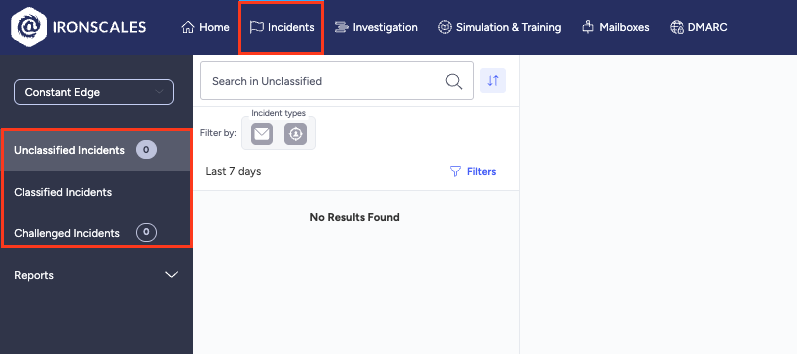
- Click Incidents in the top navigation
- Select Unclassified Incidents or Classified Incidents from the left sidebar
- Search for the email by sender, subject, or mailbox
Step 2 — Release the Email
- Open the incident to view the details
- Click Safe (top right of the incident page), this reverts the emails back to the recipients’ mailboxes
If you only need to release specific emails from the incident, scroll down to the Emails section, click Manage and review emails, select the ones you want, click Reclassify, and classify them as Safe.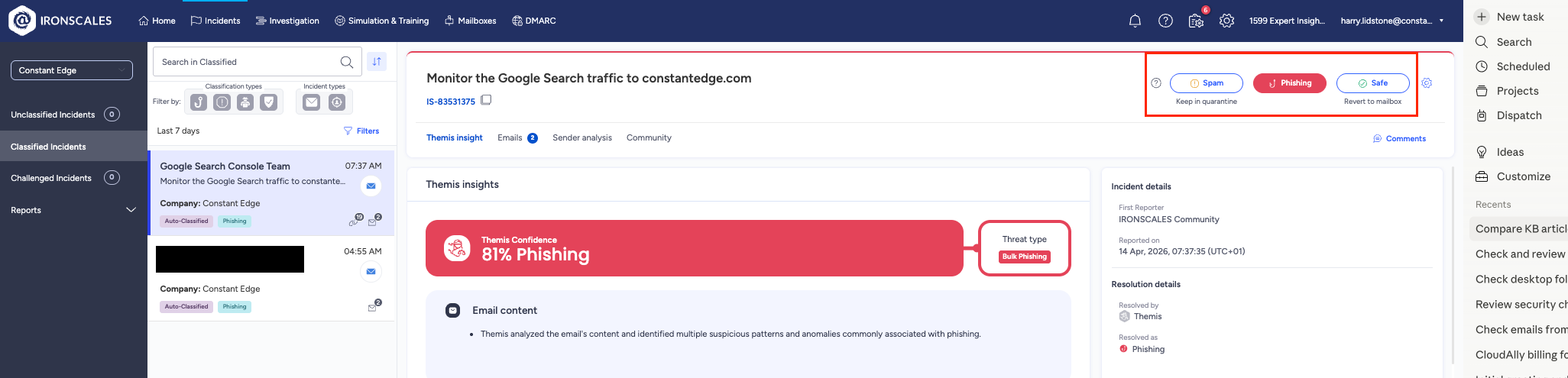
Step 3 — Stop Remediation
Marking as Safe releases the current emails, but it doesn’t stop IRONSCALES from clustering similar future emails into the same incident. To prevent that:
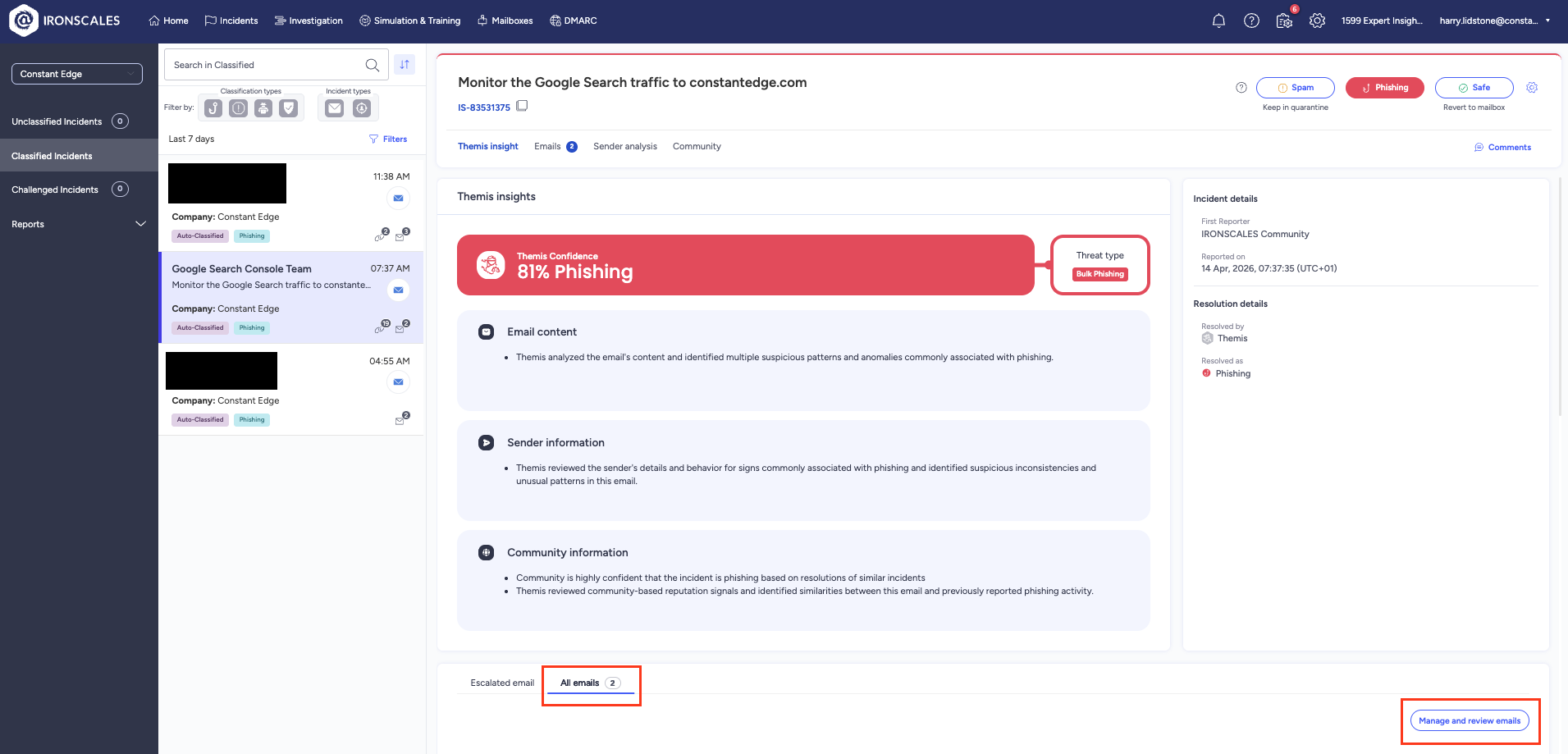
- Scroll down to the Emails section and click All Emails
- Click Manage and review emails (bottom right)
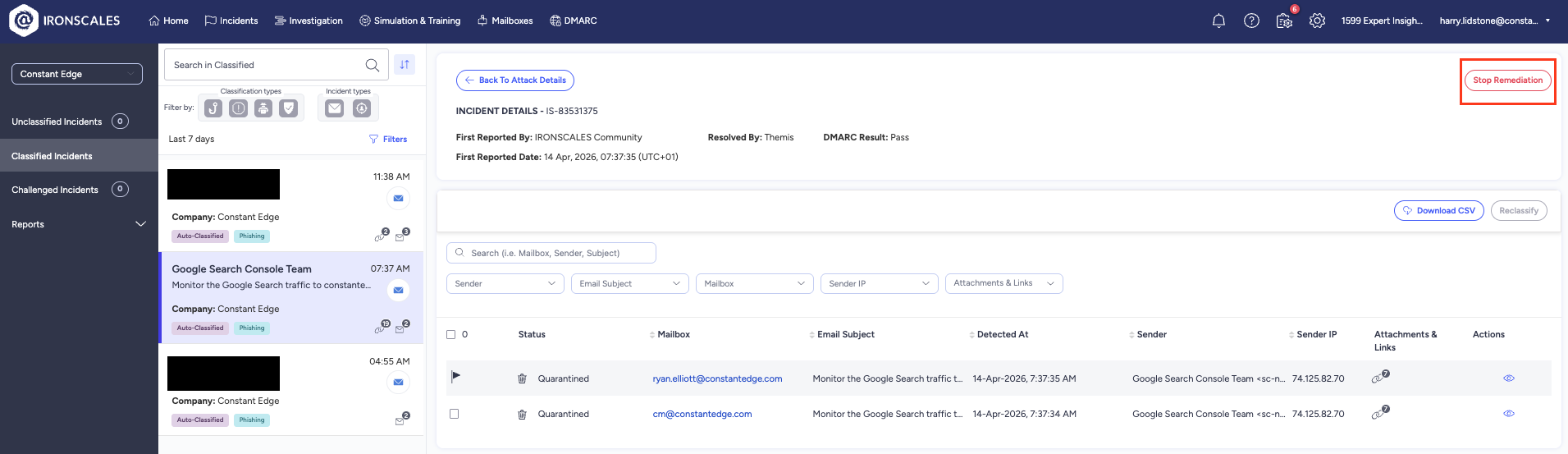
- Click Stop Remediation (top right)
- A confirmation popup will appear saying: "This will prevent other similar emails to be grouped in this incident and remediate them. Are you sure you want to proceed?" Click Continue to confirm
Once stopped, IRONSCALES won’t add new emails to this incident. If a similar email arrives in the future, a new incident will be created instead.
Important: Stop Remediation cannot be undone.
Need help with IRONSCALES?
We deploy, manage, and support IRONSCALES anti-phishing protection for businesses worldwide. If you need expert help securing your inbox, we’d be happy to help.
Speak to an expertWas this article helpful?
That’s Great!
Thank you for your feedback
Sorry! We couldn't be helpful
Thank you for your feedback
Feedback sent
We appreciate your effort and will try to fix the article