The end user quarantine digest is a scheduled email Check Point sends to each user, listing their own quarantined and Spam/Junk mail. It lets them review what was caught and, if you allow it, release or request the release of anything held by mistake, without going through the helpdesk.
What the digest is
A per-user email: each recipient only sees their own mail. It can list items held in quarantine and items Microsoft moved to the Spam/Junk folder, so the user can review what was caught and act on it.
Turn it on and set the schedule
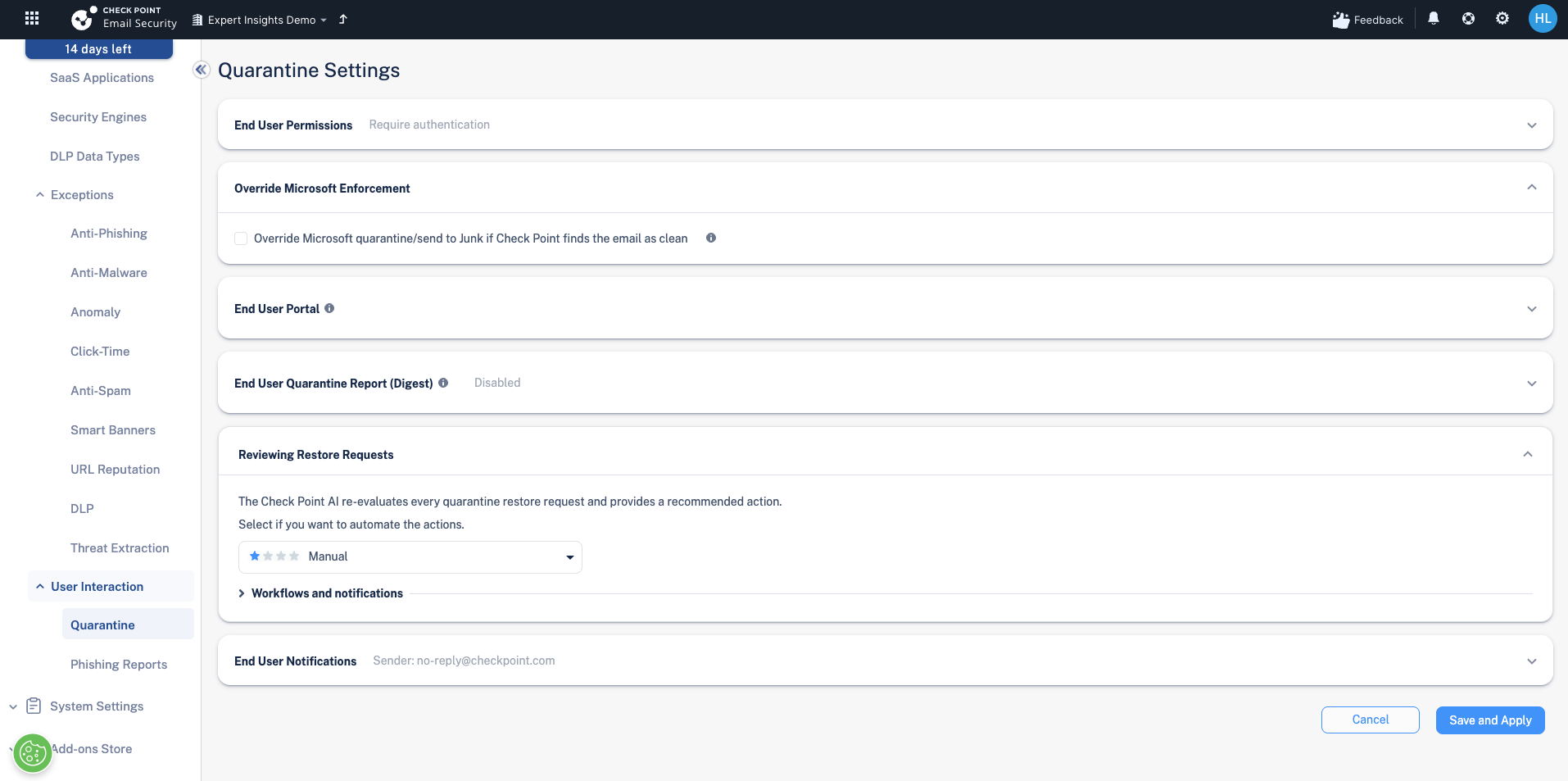
Go to Security Settings → User Interaction → Quarantine and open the Quarantine Settings page.
The digest is under End User Quarantine Report (Digest), which is off by default. Turn on Send daily quarantine report to end users, then set:
- Scheduling: pick the daily send time and time zone. Use Add More to send at several times a day (for example 06:00, 13:00 and 19:00) so users see new items without waiting a full day.
- Recipients: send to all protected users on a Prevent or Detect & Remediate policy, or narrow it to selected users or groups.
- Sender: set the From name and address (the default is no-reply@checkpoint.com) and a reply-to address if you want replies to reach you.
What goes in the digest
Under Content you choose what the digest covers:
- Include spam emails sent to the Junk folder.
- Include Graymail sent to a dedicated folder.
- Allow end users to generate a quarantine report on demand, rather than only on the schedule.
- Include a Preview link next to each quarantined email so users can look before they act.
You can also edit the email subject and body.
And you can rename the action labels users see to match your own wording: Release, Request to release, Trust Sender, and Release and Trust Sender.
What users can do: End User Permissions
Under End User Permissions, you set restore rights for each Microsoft threat category: malware, phishing, spam, bulk, DLP and transport rule.
Each category can be set to one of three options:
| Setting | What it does |
|---|---|
| Can restore on their own | The user moves the message straight to their inbox. |
| Can request a restore | The user asks an admin; it reaches the inbox only once approved. |
| Cannot restore | The item shows in the digest but the user cannot act on it. |
Related
Need Help with Check Point Harmony?
We deploy, configure, and manage Check Point Harmony Email & Collaboration for businesses, making sure your policies, engines, and protection modes are set up correctly so your organisation is fully covered.
Speak to an expertWas this article helpful?
That’s Great!
Thank you for your feedback
Sorry! We couldn't be helpful
Thank you for your feedback
Feedback sent
We appreciate your effort and will try to fix the article