The Email Security Portal (the End User Portal) is the self-service side of Check Point. It lets end users see their quarantined, spam, and junk mail, request or perform restores, and check the status of those requests, all without leaving Outlook or raising a ticket with IT. This article covers what it is, how to enable it, and what users see.
What the End User Portal is
The portal (hosted at email-security-portal.checkpoint.com) gives each user a personal view where they can:
- Find quarantined emails that were held because they looked malicious.
- Request a restore, or restore an email themselves, depending on the policy you set.
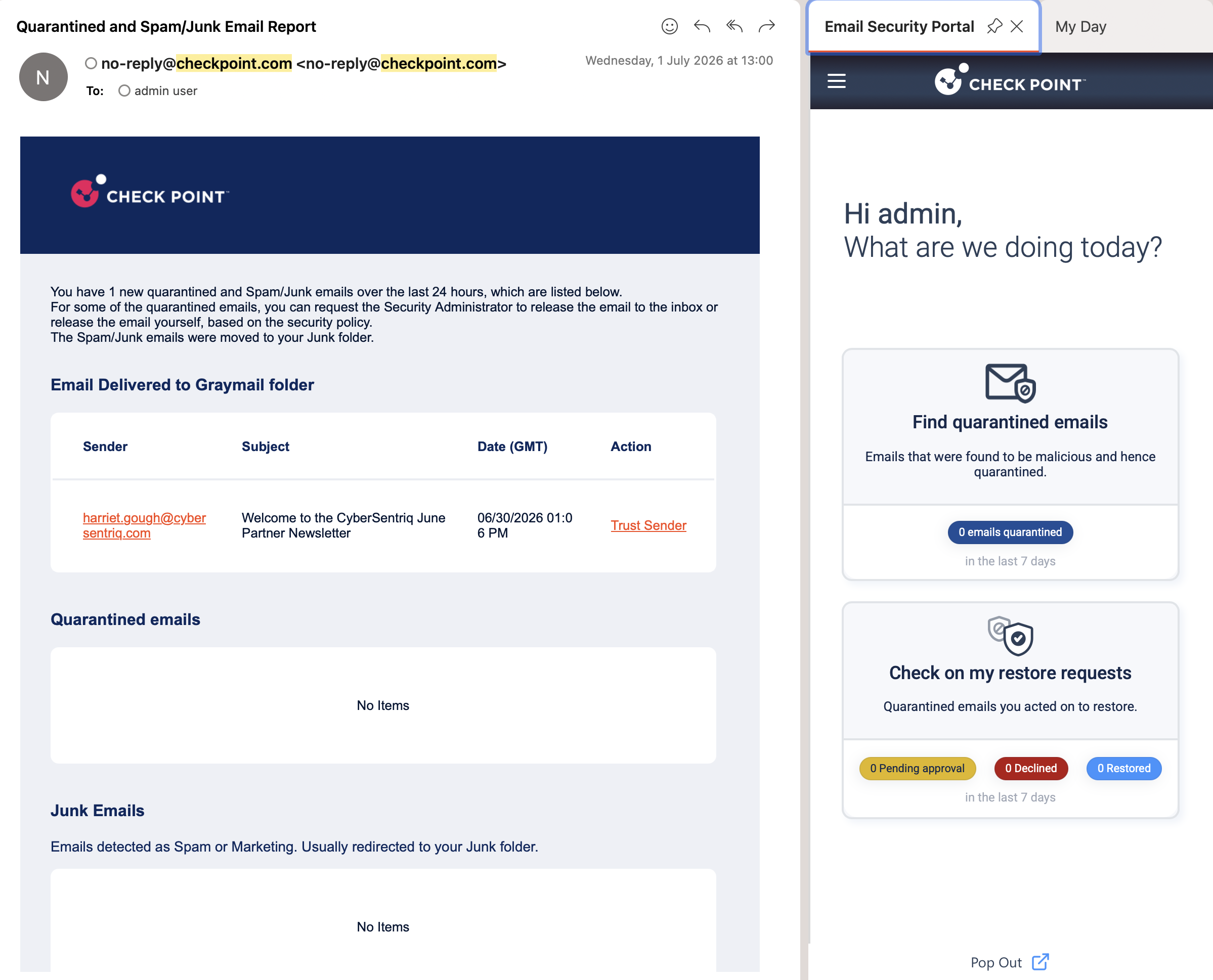
- Check on their restore requests and see the status: pending approval, declined, or restored.
Users reach it in two ways: the Email Security Portal button in Outlook (the add-in), and the quarantine digest email.
Enable the portal
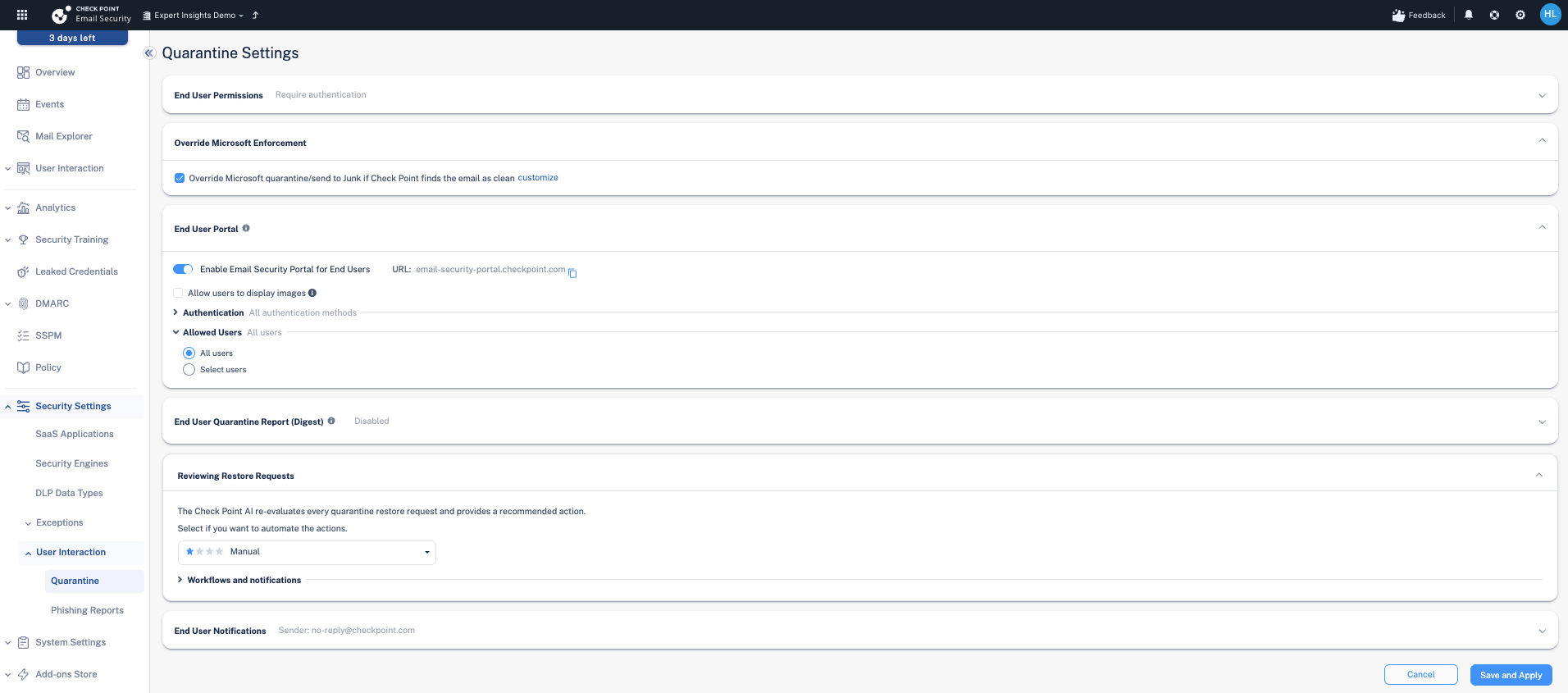
Go to Security Settings → User Interaction → Quarantine and open the End User Portal section:
- Turn on Enable Email Security Portal for End Users. The portal URL is shown next to the toggle.
- Set Authentication (which sign-in methods are allowed) and Allowed Users (All users, or a selected group).
- Optionally allow users to display images in the portal.
The quarantine digest and the portal in Outlook
Users are kept in the loop two ways. The Quarantined and Spam/Junk Email Report is a digest email listing what was quarantined, sent to graymail, or moved to junk, with actions such as Trust Sender or restore. The Email Security Portal add-in button opens the portal panel directly in Outlook, with "Find quarantined emails" and "Check on my restore requests" tiles.
Restore requests and review
When a user requests a restore, Check Point's AI re-evaluates the message and recommends an action. Under Reviewing Restore Requests you choose how automated this is, from Manual (an admin decides) through to fully automated. Users then see each request as pending approval, declined, or restored.
Match the automation level to how much you trust end users. Manual keeps every restore under admin control; automated speeds things up but hands the decision to the AI. This is the same trust dial as the protection modes.
End User Permissions and notifications
The same Quarantine Settings page controls End User Permissions (for example requiring authentication), the End User Quarantine Report (Digest) schedule, and the End User Notifications sender address. Decide how much self-service to grant: view only, or view and release.
Next steps
Previous: Deploying the Report Phishing add-in
Related: The end user quarantine digest
Need Help with Check Point Harmony?
We deploy, configure, and manage Check Point Harmony Email & Collaboration for businesses, making sure your policies, engines, and protection modes are set up correctly so your organisation is fully covered.
Speak to an expertWas this article helpful?
That’s Great!
Thank you for your feedback
Sorry! We couldn't be helpful
Thank you for your feedback
Feedback sent
We appreciate your effort and will try to fix the article