Check Point can send a lot of notifications: to administrators, to end users, and as scheduled reports. This guide covers who receives what, how to control it, and how to set up recurring reporting so the right people stay informed without being overwhelmed.
Admin and user notifications (per policy)
Each policy has an Alerts section where you control notifications:
- Send email alert to admin(s) about malware, and about phishing.
- Send email notifications to Admin on blocklisted items.
- Send email notifications to User on blocklisted items.
Set the recipient address and choose which events trigger an alert.
The "Receive Alerts" role
Who receives Check Point's admin alerts is controlled by a specific service role, Receive Alerts. It is bundled into the Primary Administrator role, so a primary admin cannot simply untick it on their own profile.
To change who gets alerts, adjust user roles: give the intended person a role that includes Receive Alerts, rather than trying to remove it from your own primary-admin profile. This is how you redirect alerts to the client's team instead of yourself.
Scheduled reporting
Check Point can email recurring reports. Use the Report Scheduler to set one up, such as a recurring Security Checkup. You can edit the default weekly report or create your own.
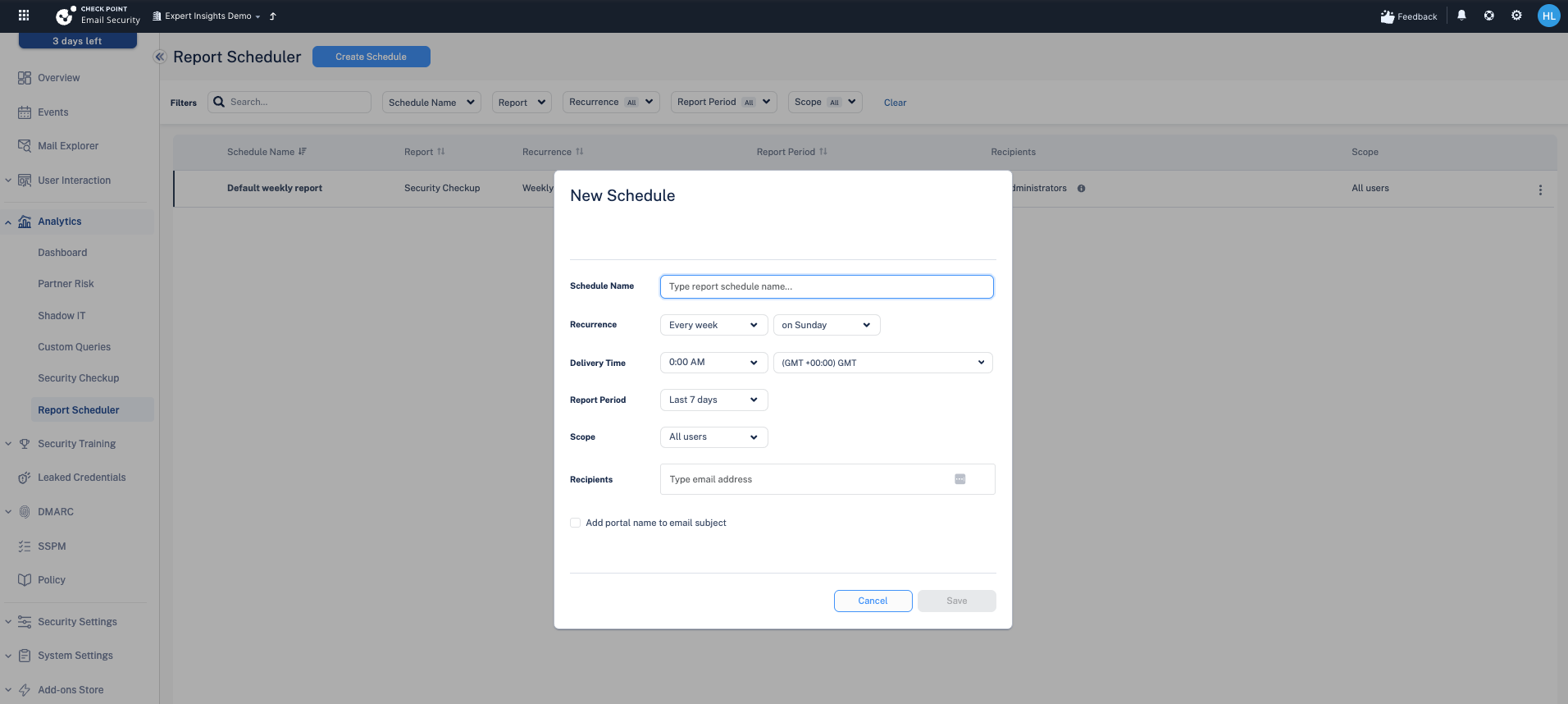
The maximum frequency in the scheduler is Weekly. There is no Daily option, so if a client wants a daily digest, the scheduler alone will not provide it.
Security Checkup report
The Security Checkup is a summary of what Check Point has seen and caught, useful for demonstrating value to stakeholders. It can be generated on demand or scheduled (weekly maximum, as above).
Next steps
Next: Deploying the Report Phishing add-in
Previous: Managing exceptions and allow-lists
Need Help with Check Point Harmony?
We deploy, configure, and manage Check Point Harmony Email & Collaboration for businesses, making sure your policies, engines, and protection modes are set up correctly so your organisation is fully covered.
Speak to an expertWas this article helpful?
That’s Great!
Thank you for your feedback
Sorry! We couldn't be helpful
Thank you for your feedback
Feedback sent
We appreciate your effort and will try to fix the article