The best way to understand Check Point policies is to build one. This guide walks through creating a policy end to end, using Click-Time Protection (URL rewriting) as the example because it touches every part of the process: choosing the engine, setting the mode, scoping the users, and configuring behaviour. The same four steps apply to any policy.
What Click-Time Protection does
Click-Time Protection rewrites the links in inbound mail so that, when a user clicks, the destination is checked at the moment of the click rather than only at delivery. If a link has turned malicious since the email arrived, the click is blocked. Because it alters the message before delivery, CTP requires Prevent (Inline) mode.
Step 1 — Configure the engine
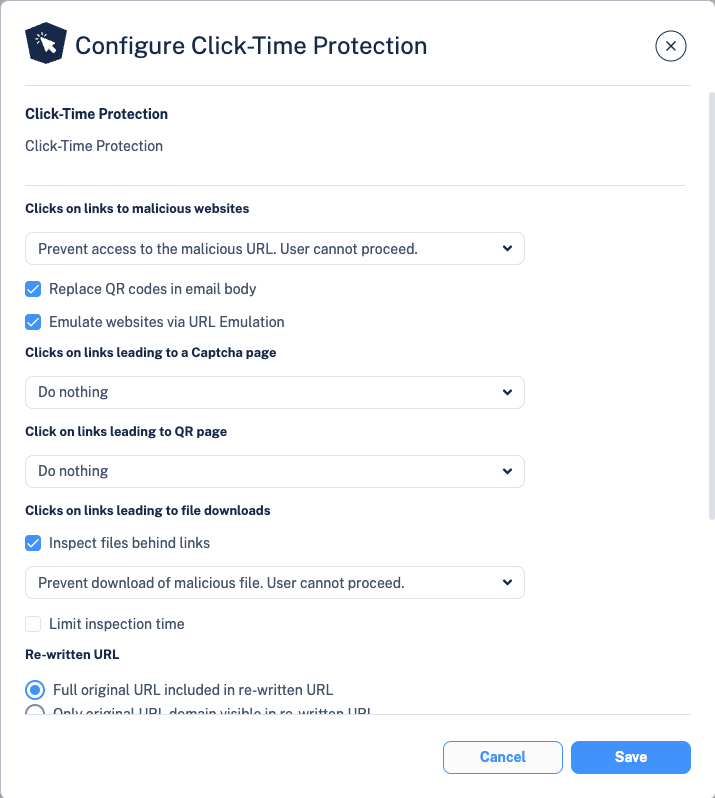
Go to Security Settings → Security Engines → Click-Time Protection and set how it behaves:
- Clicks on links to malicious websites: Prevent access, user cannot proceed (recommended).
- Replace QR codes in email body: on.
- Emulate websites via URL Emulation: on.
- Re-written URL: choose "Full original URL included in re-written URL" so the original stays readable, or "Only original URL domain visible" to obfuscate the path.
Leave attachment link rewriting OFF by default. Rewriting links inside attachments (PDF and Office files) can break digital signatures such as DocuSign and alter the file itself. Only enable it if you have a specific need and have accepted that trade-off.
Step 2 — Create the policy
Go to Policy → Create New Policy Rule:
- Choose the protection: Office 365 Emails → Click-Time Protection.
- Set the protection mode to Prevent (Inline). CTP cannot run in Detect or Detect & Remediate.
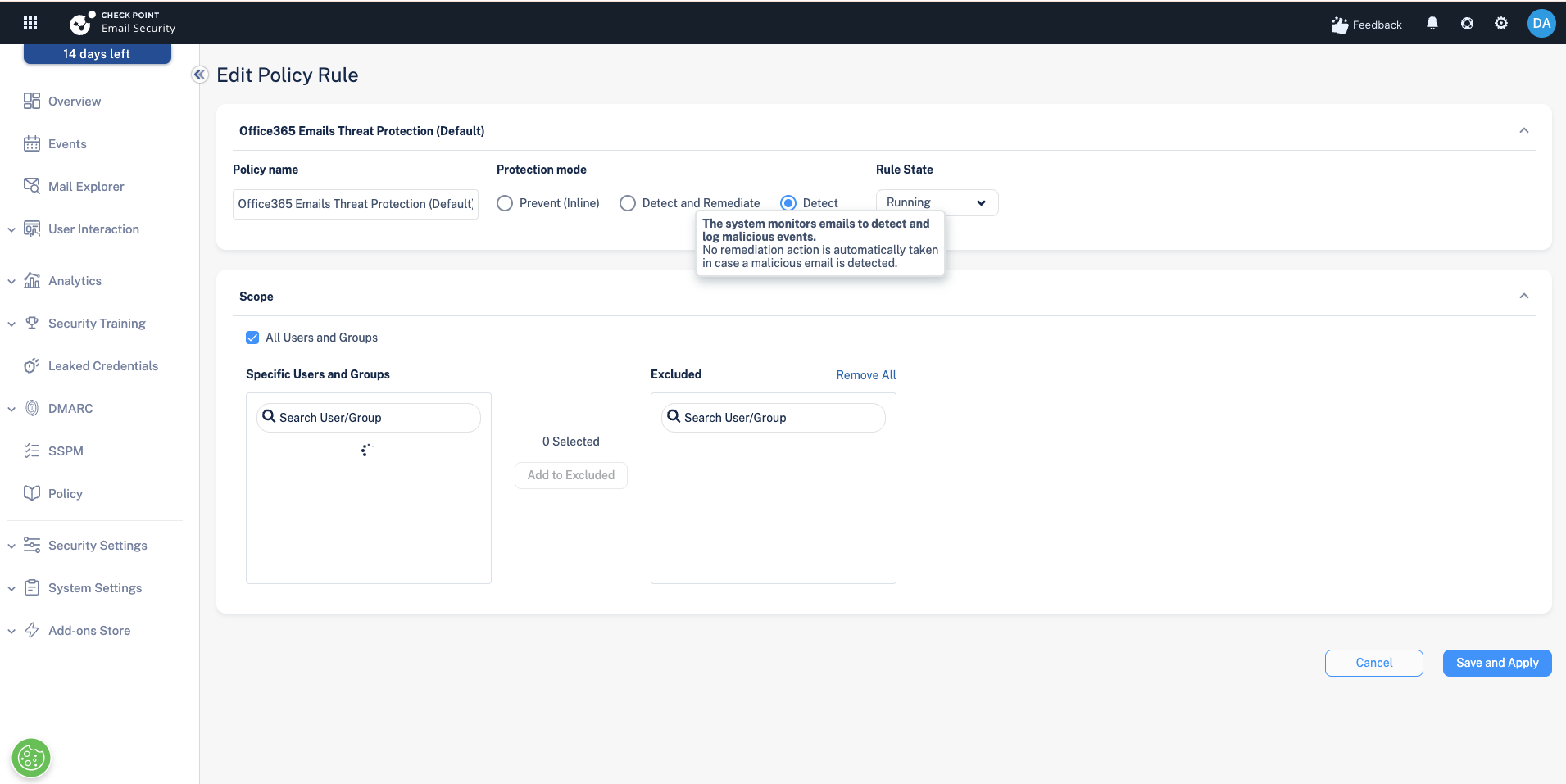
Step 3 — Set the scope
Add the users or groups the policy applies to. For a pilot, scope to your IT or pilot group rather than All Users, then widen it to the whole organisation once testing is over.
Step 4 — Save and confirm
Save the policy and confirm the intended users are in scope. Check Point is now rewriting links for those users.
Reading a rewritten link back to the original
A rewritten Check Point link has this shape:
<click-time domain>___<original url>___<encrypted blob>
If you chose "Full original URL included", the original address is readable between the triple-underscore markers, so no decoder tool is needed. If you chose "Only domain visible", the path is obfuscated. V2 links use url.checkpoint.click/v2/ (or protect.checkpoint.com/v2/); older V1 links use checkpoint.url-protection.com/v1/.
To check where a rewritten link really goes without clicking it, read the original URL from between the ___ markers (Full original URL mode), or hover to preview the destination.
Next steps
Next: DLP and keyword-triggered email encryption
Previous: Deployment modes: Detect, Detect & Remediate, and Prevent (Inline)
Need Help with Check Point Harmony?
We deploy, configure, and manage Check Point Harmony Email & Collaboration for businesses, making sure your policies, engines, and protection modes are set up correctly so your organisation is fully covered.
Speak to an expertWas this article helpful?
That’s Great!
Thank you for your feedback
Sorry! We couldn't be helpful
Thank you for your feedback
Feedback sent
We appreciate your effort and will try to fix the article