Check Point's DLP (Data Loss Prevention) inspects outbound mail for sensitive data and can act on it. It is also how you set up keyword-triggered email encryption. Like everything in Check Point, DLP has two layers: an engine that detects, and a policy that enforces.
How DLP works: two layers
The DLP engine (Security Settings → Security Engines → DLP) detects sensitive content using prebuilt data types (classifiers) such as credit card numbers, social security numbers, PII, and health data.
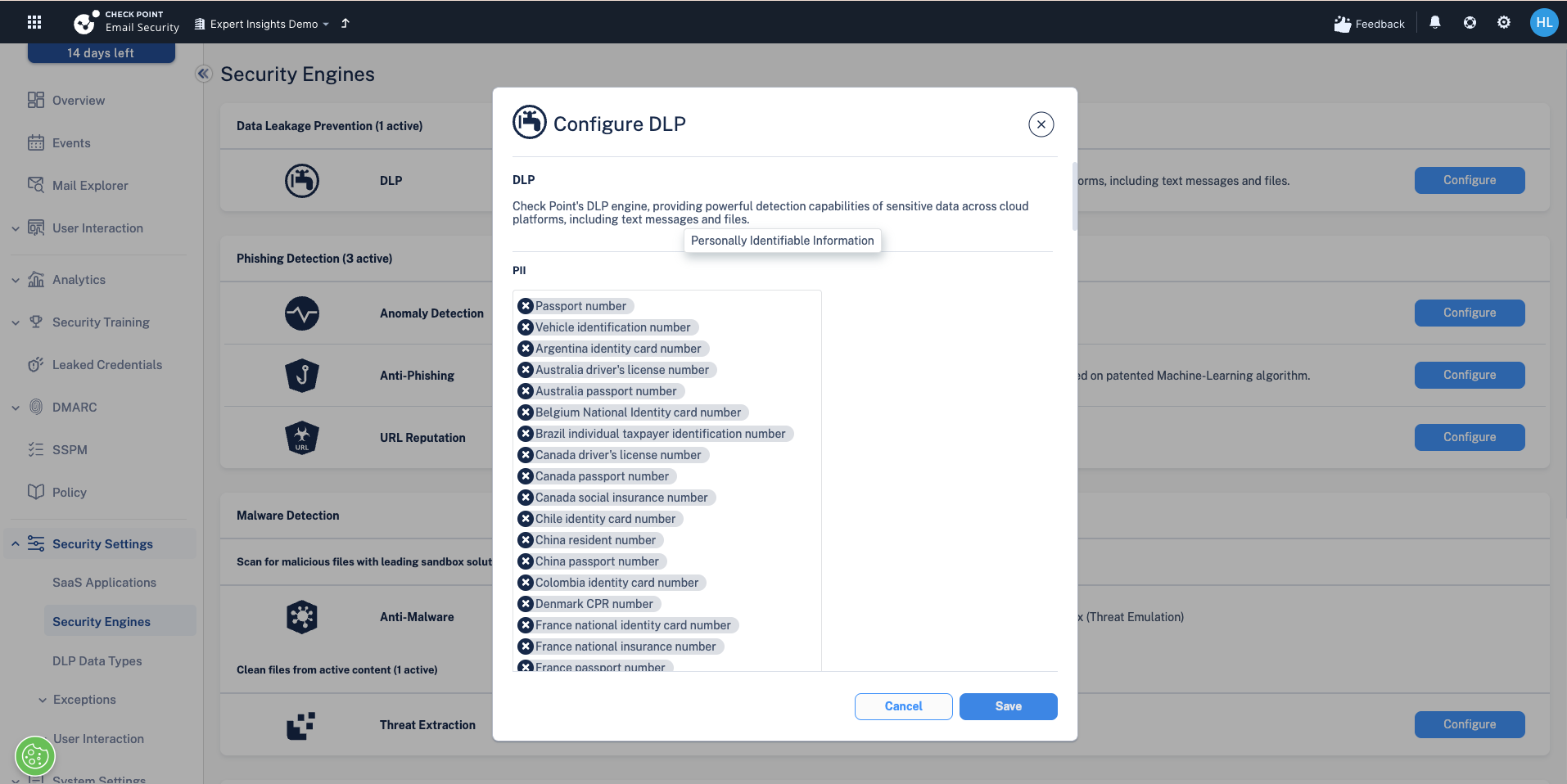
A DLP policy then activates the engine, sets the mode, and scopes the users. Outbound DLP workflows (block, encrypt, notify) only run in Prevent (Inline) for outgoing and internal traffic.
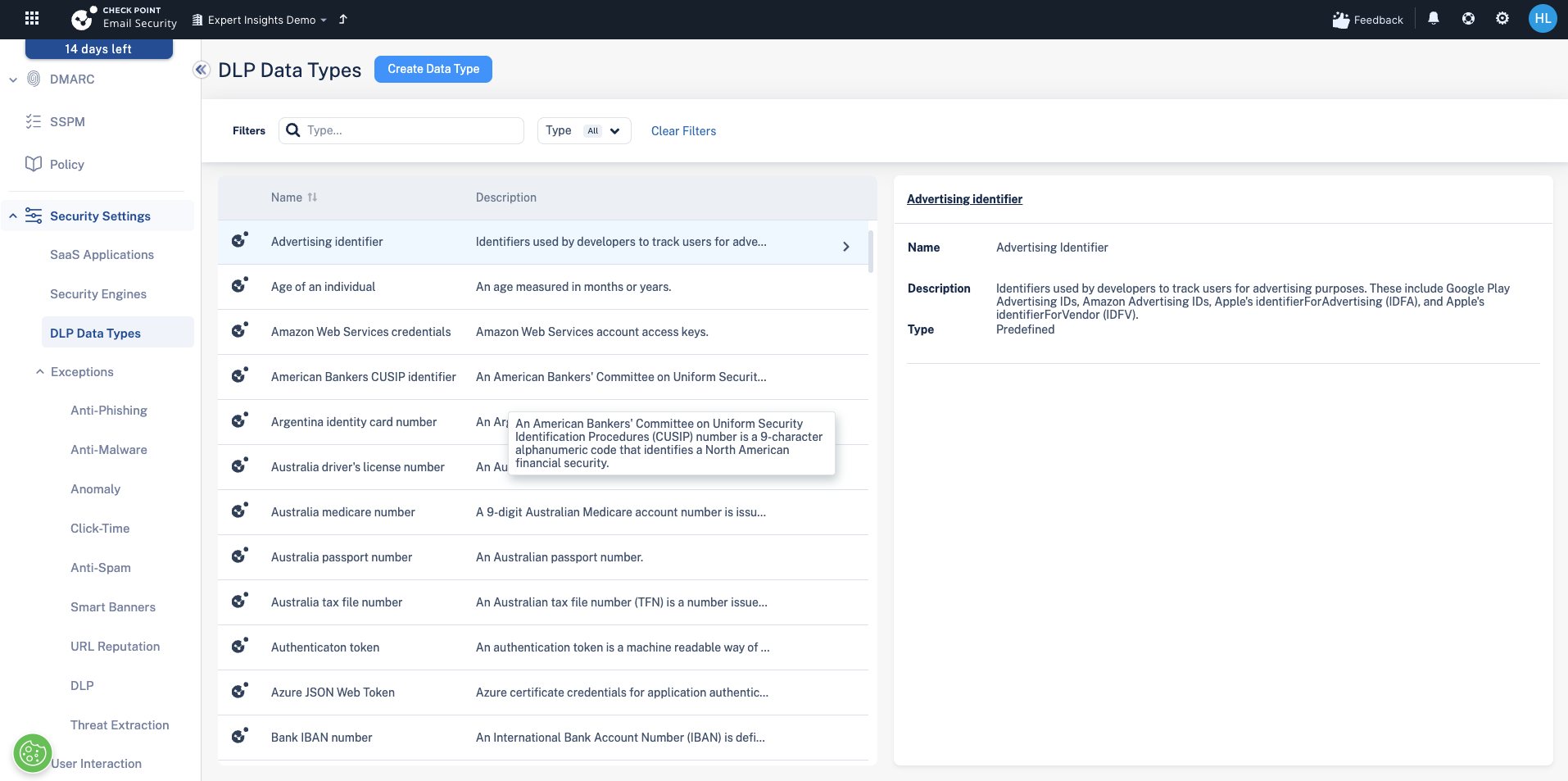
DLP data types
Check Point ships with a large library of data types you can switch on: financial, PII, health, credentials, and region-specific identifiers. Enable the ones relevant to your organisation rather than everything at once.
Keyword-triggered email encryption
A common DLP use is letting users encrypt a message on demand by putting a keyword in the subject line.
- Create a DLP rule that matches the subject using a regular expression. Use (?i)\[encrypt\] so it matches the literal tag [encrypt] case-insensitively.
- Choose the workflow action. "Email is allowed. Encrypted by Email Encryption" uses Check Point's own secure portal. Alternatively, "Encrypt using Microsoft OME" hands the encryption off to Microsoft.
Square brackets are a character class in regex, so an unescaped [encrypt] would match any single one of those letters. You must escape them as \[ and \], and (?i) makes the match case-insensitive so [ENCRYPT] and [Encrypt] both work.
The recipient experience (Check Point encryption)
When Check Point encrypts a message, the recipient receives a notification with a link to a secure portal. They authenticate with a one-time code emailed to them, read the message, and can reply securely from the portal. The link is time-limited (around 10 hours).
Detect vs Prevent for DLP
In Detect mode you can see what people are sending that matches your DLP rules, without acting on it, which is useful for baselining. But the encryption workflow only actually encrypts in Prevent (Inline), because it has to modify or route the message before delivery. In Detect, a match is logged but nothing is encrypted.
Outbound inline protection also needs the SPF include (include:spfa.cpmails.com). See the Deployment modes article before enabling it.
Next steps
Next: Anomaly Detection and impossible-travel logins
Previous: Creating a policy: a worked example with Click-Time Protection
Need Help with Check Point Harmony?
We deploy, configure, and manage Check Point Harmony Email & Collaboration for businesses, making sure your policies, engines, and protection modes are set up correctly so your organisation is fully covered.
Speak to an expertWas this article helpful?
That’s Great!
Thank you for your feedback
Sorry! We couldn't be helpful
Thank you for your feedback
Feedback sent
We appreciate your effort and will try to fix the article