Before you start
- The domain is added in Proofpoint as type Relay, with the delivery destination set to the Google host.
- Mailboxes, groups and aliases have been imported. Proofpoint has no directory sync for Google Workspace, so this comes from the CSV in Step 3.
- You have the Proofpoint sending IP ranges for your region, from the Connection Details article.
- You are signed in to the Google Admin console as a super admin.
1. Configure the inbound gateway
- Go to Apps → Google Workspace → Gmail → Spam, phishing and malware.
- Select the top level organization on the left.
- Hover to the right of Inbound gateway and click the pencil icon when it appears.

- Under Gateway IPs, click ADD and enter one range at a time.
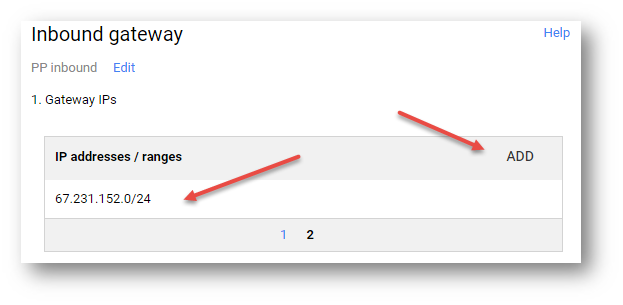
Add two sets of ranges:
- Every Proofpoint sending range for your region. Take these from the Connection Details article rather than from memory or from another customer's tenant. That article is the single source of truth and these ranges do change.
- Google's own ranges. These allow mail that Google generates itself, such as Drive sharing notifications, Calendar invitations and comment notifications, which does not pass through the relay.
| Google IP ranges to add to the gateway list | ||
|---|---|---|
| 35.190.247.0/24 | 64.233.160.0/19 | 66.102.0.0/20 |
| 66.249.80.0/20 | 72.14.192.0/18 | 74.125.0.0/16 |
| 108.177.8.0/21 | 108.177.96.0/19 | 173.194.0.0/16 |
| 209.85.128.0/17 | 216.58.192.0/19 | 216.239.32.0/19 |
| 172.217.0.0/19 | 172.217.32.0/20 | 172.217.128.0/19 |
| 172.217.160.0/20 | 172.217.192.0/19 | 172.253.56.0/21 |
| 172.253.112.0/20 | 35.191.0.0/16 | 130.211.0.0/22 |
| 2001:4860:4000::/36 | 2404:6800:4000::/36 | 2607:f8b0:4000::/36 |
| 2800:3f0:4000::/36 | 2a00:1450:4000::/36 | 2c0f:fb50:4000::/36 |
Read the list back before you leave this page. Google will accept any correctly formatted range without checking whether it is actually one of ours, so a single wrong digit is saved without any warning. Once you have added more than a few ranges, Google splits the list over several pages. Use the page numbers underneath the list to check them all, not just the first one.
- Check Automatically detect external IP (recommended).
- Check Require TLS for connections from the email gateways listed above.
- Leave Reject all mail not from gateway IPs unchecked for now. This is turned on after cutover, in Step 6.

- Click Save, then enable the inbound gateway.
2. Update safety settings
- Still in the Google Admin console, go to Apps → Google Workspace → Gmail.
- Click Safety to expand the options.
- Leave Attachments and Links & external images as they are. Proofpoint does not replace these.
- Turn off every option under Spoofing and authentication.
- Uncheck Apply future recommended settings automatically.

Once mail arrives from Proofpoint rather than from the original sender, Google's own spoofing and authentication checks are looking at the wrong hop. Leaving them on produces delivery failures that report as a DMARC problem, which sends people looking at DNS when the cause is here.
3. Configure the outbound gateway
- Go to Apps → Google Workspace → Gmail → Hosts.
- Click Add Route.
- Give it a name such as Outbound for Proofpoint Essentials.
- In the Outbound Gateway field, enter the smart host for your region.
US customers: outbound-us1.ppe-hosted.com
EU customers: outbound-eu1.ppe-hosted.com
- Click Save.
Now create the routing rule that sends outbound mail to it.
- Go to Apps → Google Workspace → Gmail → Routing. Click Configure, or Add Another Rule if one already exists.
- Enter a name such as Outbound Through Proofpoint.
- Under Email messages to affect, select Outbound.
- Under For the above types of messages, do the following, check Change route and Also reroute spam, then select the outbound route from the drop-down.
- Click Show options.
- Under B. Account types to affect, select Users, Groups and Unrecognized / Catch-all.
- Under C. Envelope Filter, check Only affect specific envelope senders, then change the drop-down from Single email address to Pattern match.
- In the Regexp field, enter the domain with the dot escaped.
example\.com
The Regexp field takes a regular expression. An unescaped dot matches any character, so example.com also matches exampleXcom. Write it as example\.com. For several domains, separate them with a pipe: example\.com|example\.co\.uk
- Click Save at the bottom of the page.
4. Configure internal routing
Internal mail needs its own route so that messages between the customer's own users are not sent out to Proofpoint and back.
- Go to Apps → Google Workspace → Gmail → Hosts. Click Add Route.
- For Name, enter Internal Google Workspace.
- Leave the drop-down on Single host. Enter aspmx.l.google.com in the first field and 25 in the port field beside it.
- Leave Perform MX lookup on host unchecked.
- Check Require mail to be transmitted via a secure (TLS) connection (Recommended), Require CA signed certificate (Recommended) and Validate certificate hostname (Recommended).
- Click Save.
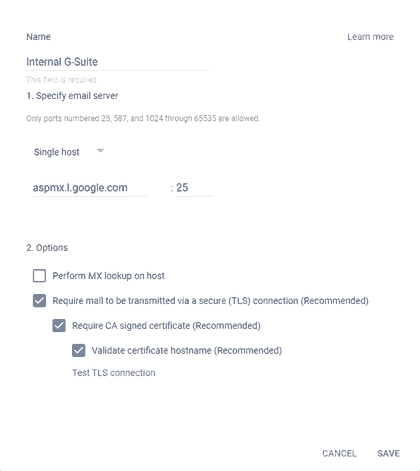
Then add the matching routing rule.
- Scroll down to Routing and click Configure, or Add Another Rule if one already exists.
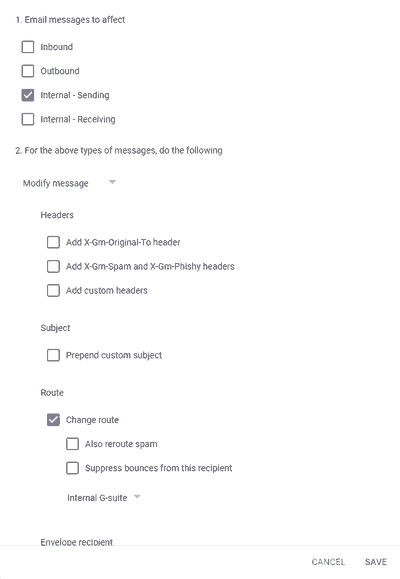
- Enter a name such as Internal Routing.
- Under Email messages to affect, check Internal - Sending.
- Under Route, check Change route and select Internal Google Workspace from the drop-down.
- Click Show options.
- Under B. Account types to affect, check Users and Groups.
- Under C. Envelope Filter, check Only affect specific envelope senders, then change the drop-down to Pattern match.
- Under Regexp, enter the domain with the dot escaped, exactly as in the outbound rule.
- Click Save.
5. Allow time for changes to propagate
Google applies most admin console changes within a few minutes. Changes made in Proofpoint take longer to propagate, and propagation runs on the hour and on the half hour. Where a change depends on both, Proofpoint sets the pace, so allow up to thirty minutes before testing.
Proceed to next step: Step 5: Test Mail Flow
Deploying Proofpoint? We Can Help
We support Proofpoint deployments end-to-end from configuration and migration to optimization, ensuring a smooth rollout with minimal disruption.
Speak to an expertWas this article helpful?
That’s Great!
Thank you for your feedback
Sorry! We couldn't be helpful
Thank you for your feedback
Feedback sent
We appreciate your effort and will try to fix the article